
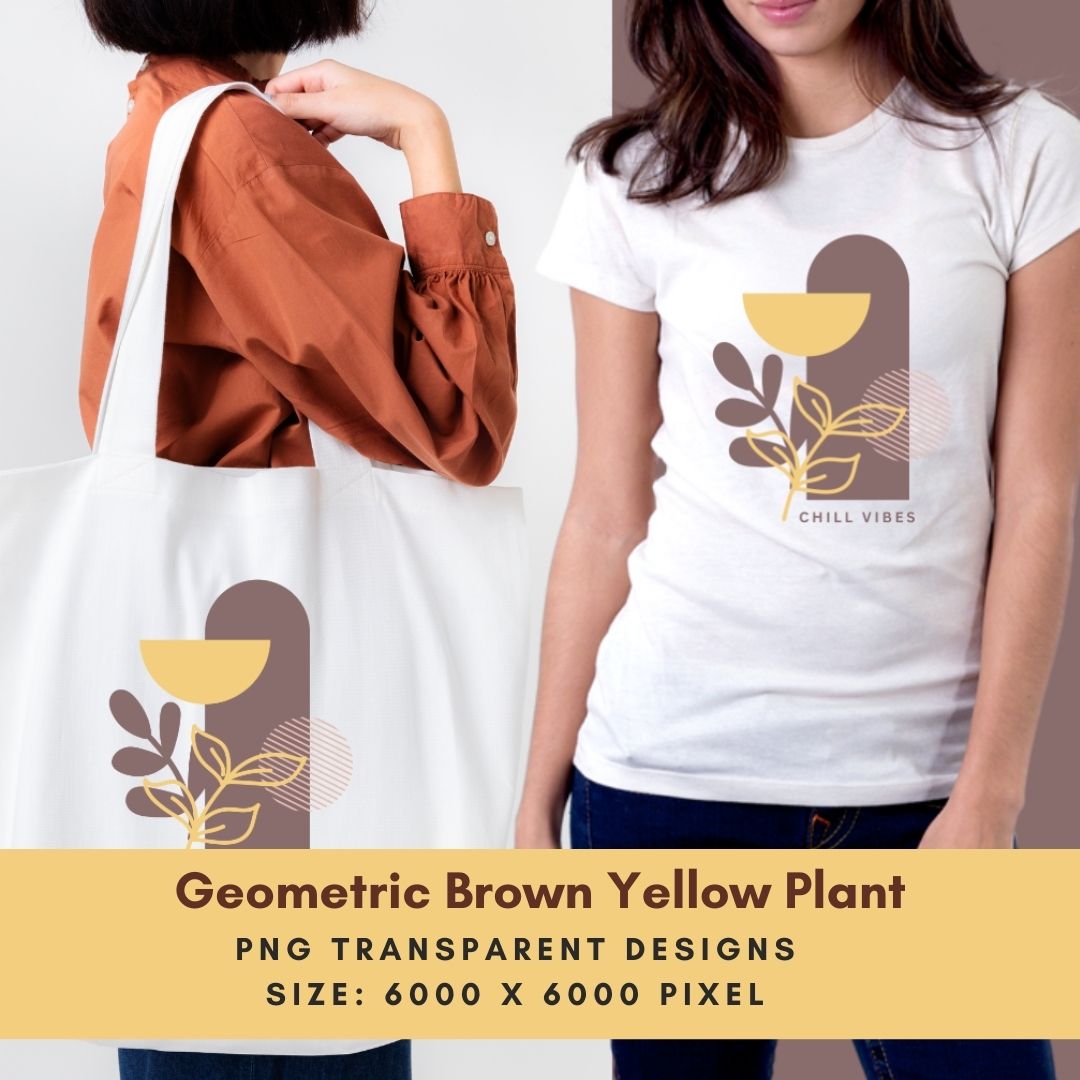
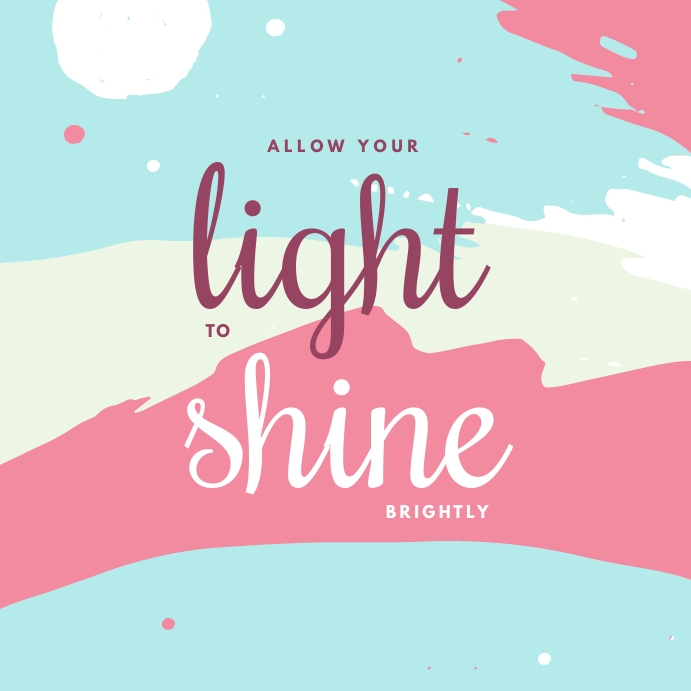




Perfect for Instagram post, planners, invitations, social media graphics, influencer marketing, product design, mockup, digital gifts and any other creative projects you have in mind.
Client for travelers, fashion events, fashion blog, work from home, wall art, motivation, inspiration, freelancer, blogger, diary, post projects ,Insta360 camera for photography, e-commerce, holiday / online shopper and art appreciation.
Design Guide:
- Use design template: How to Print on Sticker Paper
Template Materials:
- Design Size: Instagram Post 1080 x 1080 pixel.
- Created with www.postermywall.com.
- Layout Design: www.lizfloresph.com.
Stickers are everywhere: on laptops, water bottles, packaging, and planners. The good news is you don’t have to buy them; you can make your own at home.
How to Print on Sticker Paper
Printing on sticker paper is easy, but the settings matter so the ink doesn’t smudge and the alignment stays correct. Here’s a simple step-by-step guide:
Choose the Right Sticker Paper
Inkjet sticker paper – for inkjet printers
Laser sticker paper – for laser printers
Check your printer type first (using the wrong paper can ruin the sheet or printer).
Prepare Your Design
- Use high-resolution (sample 300 DPI) files for best quality.
- Set correct size (A4 or US Letter depending on your paper).
- Leave small margins to avoid cutting issues.
If you’re using:
- Canva – Download as *PDF Print* or *PNG (300 DPI)
- Photoshop/Illustrator → Use CMYK for professional prints
Load the Sticker Paper Correctly
- Place **one sheet at a time** into the paper tray.
- Make sure the printable side is facing the correct direction (test with a regular paper first if unsure).
- Adjust paper guides snugly.
Adjust Printer Settings (VERY IMPORTANT)
Before clicking print:
- Paper Type – Photo Paper
- Glossy Paper – for glossy stickers
- Print Quality – High / Best
- Scale – 100% (Actual Size)
- Turn OFF Fit to Page
Print a Test Page First
- Check alignment,, colors and margins
Let It Dry
- Inkjet prints need **5–10 minutes** to dry.
- Avoid touching immediately.
- For extra protection, you can:
After Printing
Cut using:
- Scissors
- Craft knife
- Paper cutter
- Cricut/Silhouette (for die-cut stickers)